SCHEDULING

Participant scheduling for every calendar

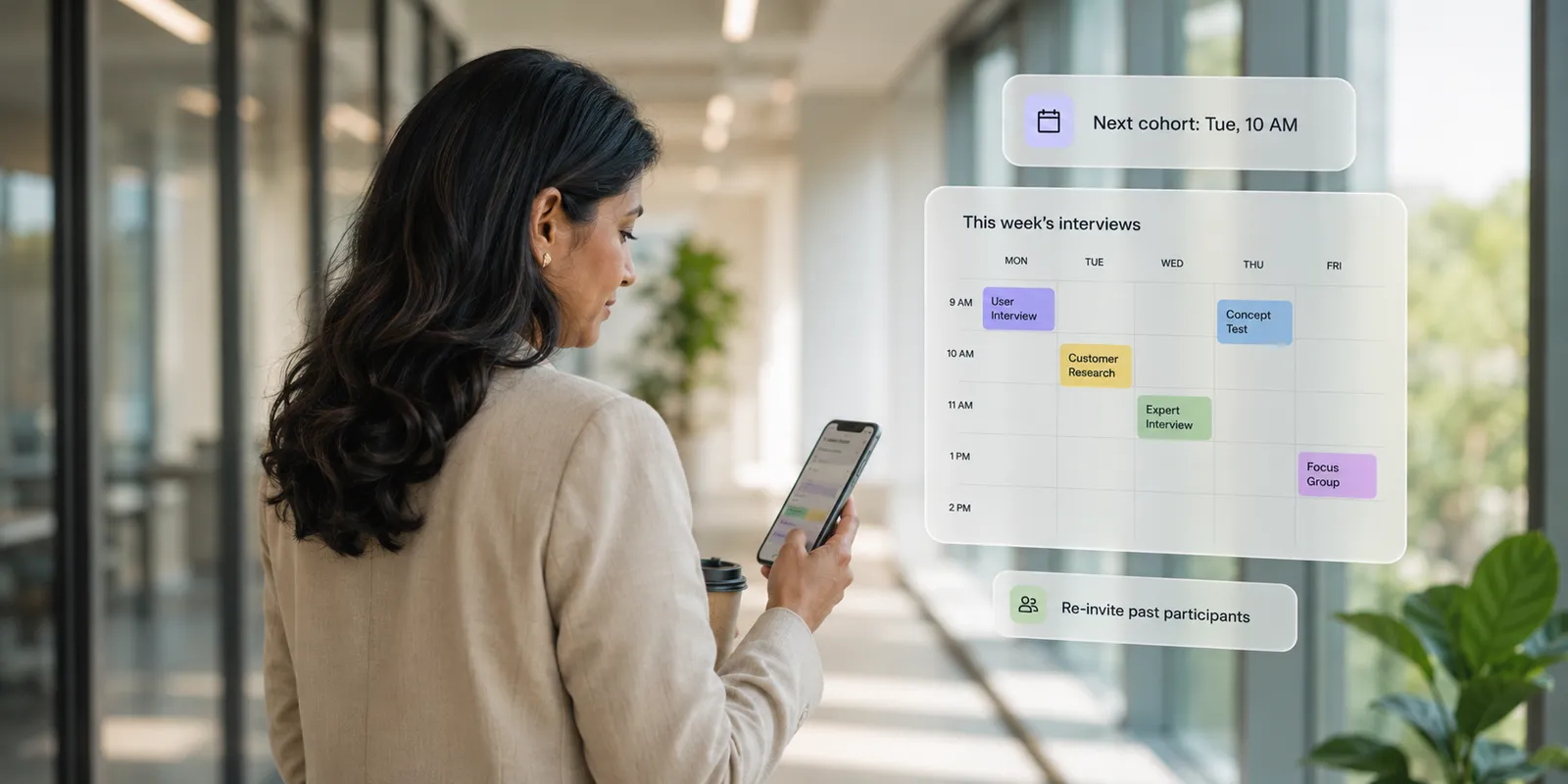
Set your availability, connect your calendar, and let participants book sessions directly. No back-and-forth emails or  external tools. Everything happens inside Respondent & syncs to your calendar.

  • First qualified match in 15 minutes
  • B2B & consumer participants
  • <1% fraud rate
Window
Screener 3
Screener
Screener 2
Screener 1

Trusted by the world’s best research teams

Works for every study type

From moderated interviews to focus groups to scheduled unmoderated surveys, our scheduling tools adapt to the research you need to complete.

Moderated Interviews

For researchers running user interviews and need seamless scheduling without the email ping-pong.

  • Set your availability with custom intervals and increments –participants pick from times that work for you
  • Sync with Google Calendar or Outlook to auto-block conflictsfrom your work calendar
  • Auto-generate Zoom or Google Meet links sent to both parties on booking

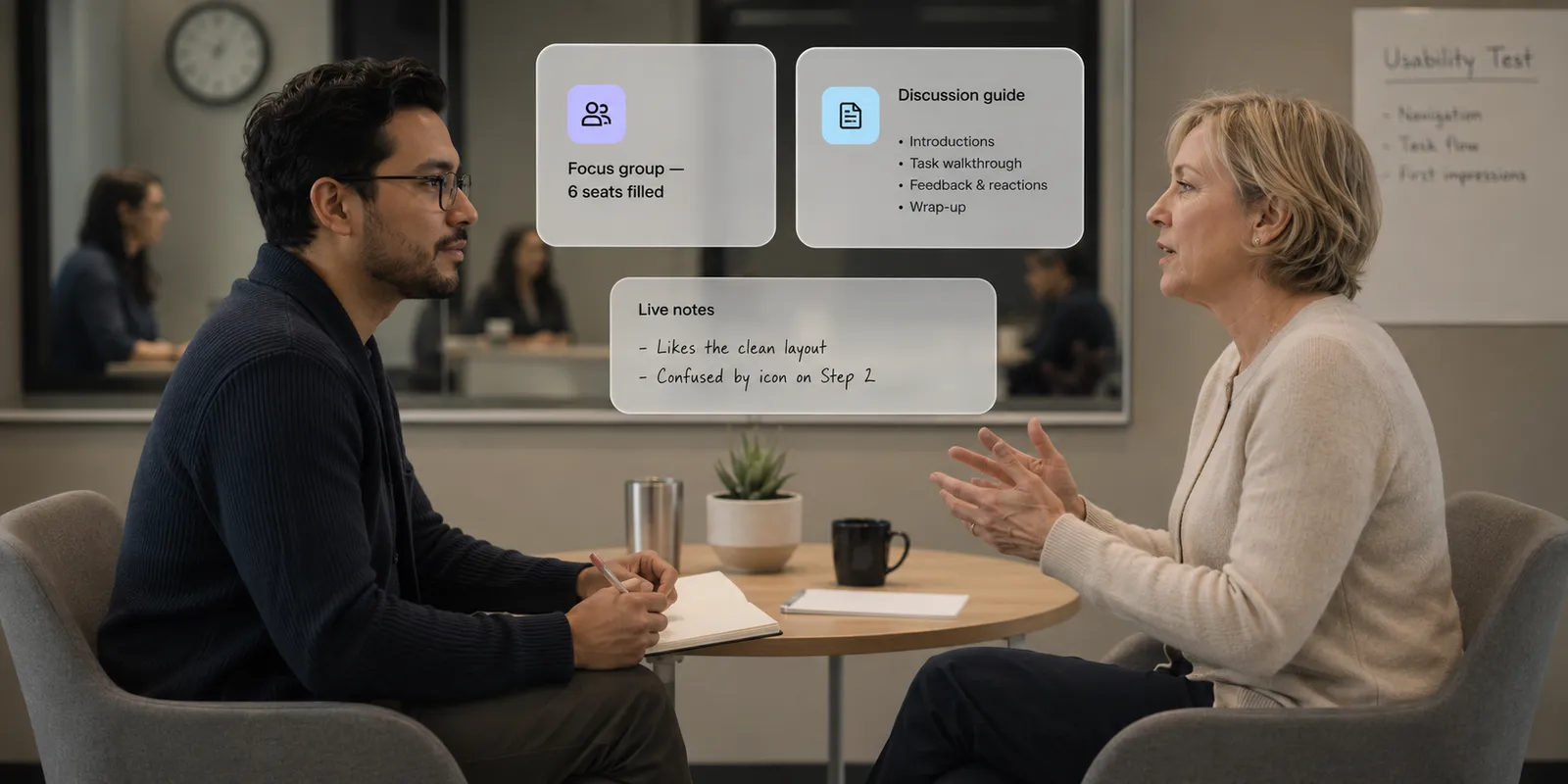
Focus Groups

Schedule multiple participants for group sessions with flexible options that work for panels, workshops, and collaborative research.

  • Set session duration and session buffers
  • One-on-one or group session options available
  • Control max bookings per session for group size
  • Participants self-select from available group slots

Unmoderated and Surveys

For unmoderated studies and surveys that don't require live sessions, the calendar still tracks completion and triggers payments.

  • Participants accept invitation to mark attendance
  • Calendar tracks completion for incentive payment processing
  • Use custom fields to share external survey/test links
CALENDAR INTEGRATION

Calendar sync & conflict detection

Connect your Google Outlook calendar. We check for conflicts so you never double-book.

Syncs with your work calendar
Integrations with your work calendar mean sessions are easy accessible and booked at a time that works for you.
Automatic conflict detection
Events marked “Busy” on your synced calendar are automatically hidden from participants, preventing double-bookings across projects.
Auto meeting links
Link your Zoom or Google Meet account. Conference details are automatically generated and sent to both you and theparticipant on booking.

Four steps to hand off scheduling

Set up once, then let participants self-book within your rules.

Step 1

Connect

Connect your Google or Outlook calendar in Account → Connections

Step 2

Set

Set availability: days, time intervals, session duration, and increments

Step 3

Configure

Configure buffer time, scheduling notice, max bookings, and link Zoom or Meet

Step 4

Invite

Invite participants. They see only available slots and book instantly

AVAILABILITY CONTROLS

Fine-grained scheduling rules

Set it up once, then let participants schedule sessions within the rules you set.

Session duration
Set interview length and how frequentlyslots appear. 60-minute sessions with 30-minute increments? Done.
Buffer time
Add prep time before sessions and debrief time after. Buffers automatically block surrounding time on your calendar.
Minimum scheduling notice
Prevent last-minute bookings. Require 12, 24, or 48+ hours notice so you always have time to prepare.
Max bookings per day
Cap daily sessions to avoid fatigue. Set per-day limits that work alongside yourtotal project max.
Day and time intervals
Open availability on specific days with custom time blocks. Default 9–5, or fine-tune to exact windows per day.
Easy rescheduling
Cancel and re-invite participants with one click. They pick a new time from your updated availability – no back-and-forth needed.

Connect with the tools you already use

Respondent integrates with your calendar, video conferencing, and research tools.

FAQ

How do I connect my calendar to Respondent?

Go to Account → Connections and link your Google Calendar or Outlook account. Once connected, Respondent will automatically sync your availability and check for conflicts. Any events marked "Busy" on your calendar will be hidden from participants, preventing double-bookings.

Does Respondent integrate with Google Calendar and Outlook?

Yes. Respondent integrates with both Google Calendar and Outlook. Connect your calendar in Account → Connections to enable automatic conflict detection, sync your availability, and have bookings added directly to your work calendar. Buffer before booking features require Google Calendar integration.

Can I set buffer time between sessions?

Yes. You can add buffer time before sessions (for prep) and after sessions (for debriefing). Buffer before booking requires Google Calendar integration. Buffer times automatically block surrounding time on your calendar.

‍

Important: Factor buffers into your availability. A 1-hour interview with 1-hour buffer blocks 2 hours total. With 9am-5pm availability and these settings, you'd only have 4 hours of actual booking time.

Can I set buffer time between sessions?

Yes. You can add buffer time before sessions (for prep) and after sessions (for debriefing). Buffer before booking requires Google Calendar integration. Buffer times automatically block surrounding time on your calendar.

‍

Important: Factor buffers into your availability. A 1-hour interview with 1-hour buffer blocks 2 hours total. With 9am-5pm availability and these settings, you'd only have 4 hours of actual booking time.

What scheduling preferences can I control?

You can control:

  • Session duration: How long each booking lasts
  • Day/time availability: Specific days and custom time blocks (default 9am-5pm)
  • Increments: Time intervals participants can select
  • Max bookings: Total sessions for the entire project
  • Max bookings per day: Daily session limits
  • Minimum scheduling notice: Require 12, 24, or 48+ hours advance notice
  • Buffer time: Prep time before and debrief time after sessions

All settings are configured in the Calendars tab of your project.

Can participants reschedule their own sessions?

No, participants cannot reschedule their own sessions. If a participant needs to reschedule, you must cancel their invitation and re-invite them. They can then select a new time from your available slots.

‍

To reschedule: Go to your project → Participants tab → Cancel the invitation → Re-invite the participant with updated availability.

Can I share a calendar across multiple projects?

No, each calendar is project-specific and not shared across projects. To avoid conflicts across multiple concurrent projects: Integrate your chosen calendar tool. This centralizes your scheduling and automatically prevents conflicts across all your Respondent projects.

Do I need the calendar for unmoderated studies?

Yes. Even for unmoderated studies, surveys, or diary projects, you need to create and enable a calendar. Here's why: the calendar tracks participant "attendance" in your project dashboard, which is required to mark them complete and trigger their incentive payment.

Does Respondent work with Zoom?

Yes. Connect your Zoom or Google Meet account in your calendar settings. When participants book a session, conference details are automatically generated and sent to both you and the participant. No manual meeting link creation needed.

Customer Success Stories

Rated 4.6 from 400+ reviews on G2.com

John Whaley

Director, Research and Testing - Instrument

We tested out a few platforms and quickly realized that Respondent was getting us good people fast. That’s frankly all we need.

Taylor Jennings

Lead UX Researcher - Chili Piper

Respondent helps me easily find the exactly-right participants for my projects. Further, it works for any type of research project with any kind of participant.

Jacqueline Jordan

GVP, Research at Huge

The participants have been who they say they are, we can verify them, and they're super responsive. Respondent has helped us do better research and be better researchers.

Find your first research participant in 15 minutes

Respondent is the fastest way to recruit, screen, and pay research participants - all in the same place